
What do you do to remove your plugged in USB device like flash drive? You need to move your mouse to the system tray and locate the small USB icon “Safely Remove Hardware and Eject Media” (in case of Windows 7 and Vista) and click on it and confirm that you want to remove or stop a particular USB device.
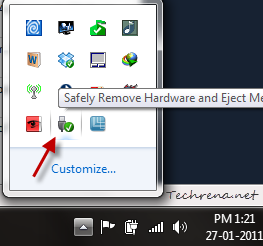
But even though it is simple, it is often tiresome as you need to expand the arrow in the tray and locate the small icon (Windows 7). This where you wish you had a shortcut at some other easily accessible place. A desktop shortcut for this “Safely Remove Hardware” dialog would be much more handy. If you are like me, get to know how to create a Safely Remove Hardware shortcut in Windows 7 and Vista by following these steps.
1. Right-click on your desktop, choose New > Shortcut.
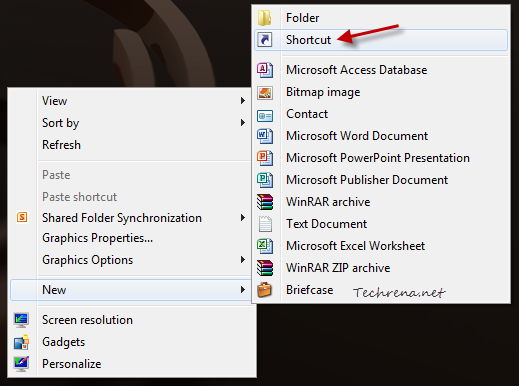
2. In the next window, paste the following code in the “location of the item”
%windir%\system32\rundll32.exe shell32.dll,Control_RunDLL hotplug.dll
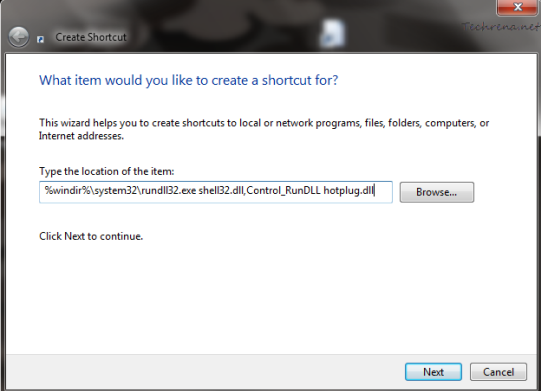
Click the “Next” button to continue to the next step.
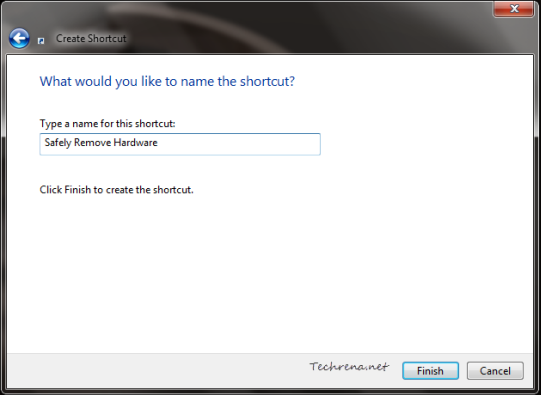
3. Give the shortcut a meaningful name and click the “Finish” button to complete the setup.
4. The new shortcut icon appears on your desktop.
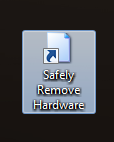
If you have plugged in the USB flash drive, double-click on the shortcut icon to see if it works. It should open the Safely Remove Hardware window, showing you the list of currently plugged in devices (USB and non-USB as well).
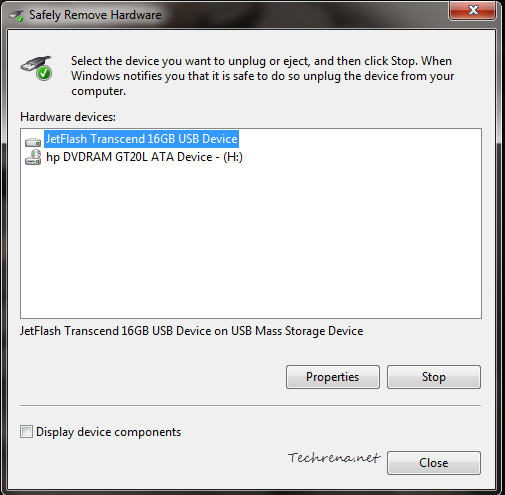
Select the particular device that you want to unplug or remove and click the “Stop” button to stop the device.
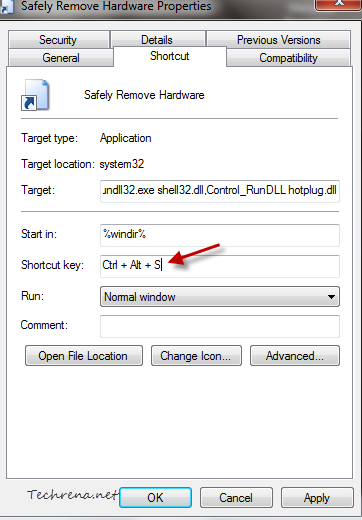
The advantage with this kind of shortcut trick is that you can choose to have a shortcut key setup for even more quicker access.
To assign a shortcut for the Safely Remove Hardware shortcut, just right-click on the shortcut and choose a unique keyboard key combination to assign as hotkey.

Safely Remove Hardware and Eject Media – notification problems ?
simply go to bios – somewhere in the tabs says :storage
then disable “hot plug”
save and then notification doesnt show up on windows 7 any more , worked for me
Trying out Heal Infected Sprunkies right now. That beat drop in the middle is fire! Love how the characters react to the rhythm. Definitely my new favorite phase.
NGL, Heal Infected Sprunkies is low-key sus in the best way possible. The glitch effects are so well-done and they don’t break the game. Total masterpiece!
I’m curious about the mechanics behind Heal Infected Sprunkies. Is there a hidden combo? The visuals during the transition look sus, like there’s an easter egg. Love it!
I truly appreciate this post. I have been looking all over for this! Thank goodness I found it on Bing. You have made my day! Thanks again!
Hi there! Would you mind if I share your blog with my zynga group? There’s a lot of people that I think would really enjoy your content. Please let me know. Many thanks
Hello my loved one! I wish to say that this post is amazing, nice written and include approximately all important infos. I would like to peer more posts like this .
You have brought up a very wonderful points, thanks for the post.
I have recently started a website, the info you provide on this website has helped me greatly. Thank you for all of your time & work.
Can I simply say what a relief to seek out somebody who truly is aware of what theyre speaking about on the internet. You positively know how to deliver an issue to gentle and make it important. More people must read this and understand this side of the story. I cant believe youre not more common because you definitely have the gift.
I like this site so much, bookmarked.
Heya i am for the first time here. I found this board and I to find It really helpful & it helped me out much. I am hoping to present something back and help others such as you helped me.
hi!,I like your writing very much! share we communicate more about your article on AOL? I need an expert on this area to solve my problem. Maybe that’s you! Looking forward to see you.
You completed a number of good points there. I did a search on the subject matter and found a good number of people will have the same opinion with your blog.
Terrific paintings! That is the kind of info that should be shared across the internet. Shame on Google for not positioning this put up upper! Come on over and discuss with my site . Thanks =)
Whats Happening i’m new to this, I stumbled upon this I’ve found It positively helpful and it has aided me out loads. I am hoping to contribute & help other users like its helped me. Good job.
I’d should verify with you here. Which isn’t one thing I normally do! I take pleasure in studying a put up that will make folks think. Also, thanks for permitting me to remark!
Nice post. I learn something more challenging on different blogs everyday. It will always be stimulating to read content from other writers and practice a little something from their store. I’d prefer to use some with the content on my blog whether you don’t mind. Natually I’ll give you a link on your web blog. Thanks for sharing.
Can I just say what a relief to seek out somebody who truly knows what theyre speaking about on the internet. You positively know learn how to bring a difficulty to mild and make it important. More individuals have to learn this and perceive this facet of the story. I cant consider youre not more in style since you undoubtedly have the gift.
Whats up very cool site!! Man .. Excellent .. Amazing .. I’ll bookmark your website and take the feeds additionally?KI am happy to search out numerous useful info here in the post, we’d like work out more strategies on this regard, thank you for sharing. . . . . .
Hello my loved one! I want to say that this post is amazing, great written and include approximately all significant infos. I would like to see more posts like this .
I used to be suggested this website by means of my cousin. I am not certain whether this submit is written by means of him as nobody else recognise such specific about my problem. You’re wonderful! Thanks!
It’s really a nice and useful piece of info. I’m satisfied that you simply shared this useful information with us. Please keep us informed like this. Thanks for sharing.
I am writing to make you understand of the excellent encounter my friend’s daughter found browsing your webblog. She learned a wide variety of things, including what it is like to possess an amazing helping style to let other folks with no trouble thoroughly grasp a variety of specialized issues. You truly exceeded our expected results. I appreciate you for giving those productive, safe, educational and fun tips on the topic to Tanya.
I’ll immediately take hold of your rss feed as I can’t find your email subscription link or newsletter service. Do you have any? Kindly permit me understand so that I may just subscribe. Thanks.
Hey very cool web site!! Man .. Excellent .. Wonderful .. I’ll bookmark your site and take the feeds also?KI am glad to find numerous helpful information here within the publish, we want work out extra techniques in this regard, thank you for sharing. . . . . .
Pretty great post. I simply stumbled upon your blog and wanted to mention that I have really loved browsing your weblog posts. In any case I’ll be subscribing to your rss feed and I’m hoping you write once more soon!
It’s hard to find knowledgeable people on this topic, but you sound like you know what you’re talking about! Thanks
Hiya, I am really glad I’ve found this info. Nowadays bloggers publish just about gossips and net and this is actually frustrating. A good site with exciting content, that is what I need. Thank you for keeping this site, I will be visiting it. Do you do newsletters? Can not find it.
Saved as a favorite, I really like your blog!
The following time I read a weblog, I hope that it doesnt disappoint me as a lot as this one. I imply, I do know it was my option to learn, however I really thought youd have something fascinating to say. All I hear is a bunch of whining about one thing that you could fix for those who werent too busy searching for attention.
I went over this website and I conceive you have a lot of superb info, bookmarked (:.
Interesting blog! Is your theme custom made or did you download it from somewhere? A design like yours with a few simple tweeks would really make my blog jump out. Please let me know where you got your theme. Appreciate it
Awsome website! I am loving it!! Will come back again. I am taking your feeds also.
I do agree with all of the ideas you’ve presented in your post. They’re very convincing and will certainly work. Still, the posts are very short for starters. Could you please extend them a little from next time? Thanks for the post.
I like this post, enjoyed this one thanks for putting up. “To the dull mind all nature is leaden. To the illumined mind the whole world sparkles with light.” by Ralph Waldo Emerson.
It’s a pity you don’t have a donate button! I’d without a doubt donate to this outstanding blog! I suppose for now i’ll settle for bookmarking and adding your RSS feed to my Google account. I look forward to brand new updates and will talk about this website with my Facebook group. Talk soon!
Just about all of whatever you articulate is supprisingly legitimate and that makes me wonder why I hadn’t looked at this in this light before. This piece truly did turn the light on for me personally as far as this specific subject matter goes. But there is one particular position I am not necessarily too comfy with and whilst I try to reconcile that with the actual main idea of your issue, permit me observe just what all the rest of the readers have to point out.Nicely done.
Great post and straight to the point. I don’t know if this is really the best place to ask but do you guys have any ideea where to get some professional writers? Thanks 🙂
Hi , I do believe this is an excellent blog. I stumbled upon it on Yahoo , i will come back once again. Money and freedom is the best way to change, may you be rich and help other people.
Woh I like your articles, saved to favorites! .
There is noticeably a bundle to know about this. I assume you made certain nice points in features also.
I’ll immediately seize your rss feed as I can not to find your e-mail subscription hyperlink or newsletter service. Do you’ve any? Please let me realize in order that I may just subscribe. Thanks.
Valuable information. Lucky me I found your web site by accident, and I am shocked why this accident didn’t happened earlier! I bookmarked it.
Keep functioning ,terrific job!
Great work! This is the type of info that should be shared around the net. Disgrace on Google for now not positioning this submit higher! Come on over and talk over with my site . Thank you =)
Its good as your other blog posts : D, regards for putting up. “What makes something special is not just what you have to gain, but what you feel there is to lose.” by Andre Agassi.
This really answered my problem, thank you!
It’s hard to find knowledgeable people on this topic, but you sound like you know what you’re talking about! Thanks
숙소 위치에 맞춰 이동 동선과 귀가 방법까지 확인하면 일정 잡기가 수월하겠네요. 제주 가라오케 이용 안내에도 위치와 이용 조건을 확인하는 방법이 나와 있습니다.
Hello my friend! I want to say that this article is amazing, nice written and include approximately all significant infos. I would like to see more posts like this.
I’ve learn several excellent stuff here. Definitely value bookmarking for revisiting. I wonder how much attempt you set to make any such fantastic informative site.
There is noticeably a bundle to know about this. I assume you made certain nice points in features also.
Today, I went to the beach with my kids. I found a sea shell and gave it to my 4 year old daughter and said “You can hear the ocean if you put this to your ear.” She placed the shell to her ear and screamed. There was a hermit crab inside and it pinched her ear. She never wants to go back! LoL I know this is completely off topic but I had to tell someone!
Hi, Neat post. There’s a problem with your site in internet explorer, would check this… IE still is the market leader and a big portion of people will miss your magnificent writing because of this problem.
Thank you for another informative web site. Where else may I get that kind of information written in such a perfect method? I’ve a venture that I am just now running on, and I’ve been at the glance out for such information.
I really like reading and I conceive this website got some truly useful stuff on it! .
I wanted to thank you for this great read!! I definitely enjoying every little bit of it I have you bookmarked to check out new stuff you post…
There is noticeably a bundle to identify about this. I assume you made certain good points in features also.
I truly enjoy examining on this website , it has good posts.
This web site is really a walk-through for all of the info you wanted about this and didn’t know who to ask. Glimpse here, and you’ll definitely discover it.
Thank you, I have recently been searching for info approximately this subject for ages and yours is the greatest I’ve discovered so far. However, what concerning the bottom line? Are you sure concerning the supply?
I truly enjoy looking through on this site, it holds excellent posts. “Never fight an inanimate object.” by P. J. O’Rourke.
Unquestionably consider that which you said. Your favorite reason appeared to be on the internet the easiest thing to take into accout of. I say to you, I certainly get irked whilst other people think about worries that they just do not recognize about. You controlled to hit the nail upon the top as neatly as outlined out the whole thing without having side effect , other folks could take a signal. Will likely be again to get more. Thank you
You actually make it seem so easy with your presentation however I in finding this topic to be really something that I think I would by no means understand. It seems too complicated and extremely wide for me. I’m having a look forward for your next submit, I’ll attempt to get the hang of it!
You could definitely see your expertise in the work you write. The world hopes for more passionate writers like you who are not afraid to say how they believe. Always go after your heart.
This design is spectacular! You obviously know how to keep a reader entertained. Between your wit and your videos, I was almost moved to start my own blog (well, almost…HaHa!) Wonderful job. I really enjoyed what you had to say, and more than that, how you presented it. Too cool!
You have brought up a very good points, appreciate it for the post.
I got good info from your blog
When I originally commented I clicked the “Notify me when new comments are added” checkbox and now each time a comment is added I get three emails with the same comment. Is there any way you can remove me from that service? Thanks a lot!
I have read a few good stuff here. Definitely value bookmarking for revisiting. I surprise how a lot attempt you place to make this sort of excellent informative website.
It’s actually a great and useful piece of information. I am glad that you just shared this helpful info with us. Please keep us informed like this. Thanks for sharing.
It’s really a nice and helpful piece of information. I am satisfied that you simply shared this useful info with us. Please keep us informed like this. Thank you for sharing.
I have recently started a site, the info you provide on this site has helped me greatly. Thanks for all of your time & work.
An attention-grabbing discussion is worth comment. I believe that you must write extra on this topic, it may not be a taboo topic however generally persons are not sufficient to speak on such topics. To the next. Cheers
Very interesting details you have mentioned, appreciate it for posting.
I besides conceive hence, perfectly written post! .
I was curious if you ever considered changing the layout of your blog? Its very well written; I love what youve got to say. But maybe you could a little more in the way of content so people could connect with it better. Youve got an awful lot of text for only having one or two images. Maybe you could space it out better?
Keep working ,terrific job!
There are certainly lots of particulars like that to take into consideration. That could be a great point to bring up. I supply the ideas above as basic inspiration however clearly there are questions just like the one you convey up where an important factor shall be working in trustworthy good faith. I don?t know if finest practices have emerged round things like that, however I’m certain that your job is clearly recognized as a good game. Each boys and girls feel the affect of just a moment’s pleasure, for the rest of their lives.
Hi, Neat post. There is a problem together with your website in web explorer, could test thisK IE still is the marketplace chief and a big element of other folks will leave out your fantastic writing due to this problem.
I am thankful that I noticed this site, just the right info that I was looking for! .
Have you ever considered about adding a little bit more than just your articles? I mean, what you say is important and all. But think of if you added some great pictures or videos to give your posts more, “pop”! Your content is excellent but with pics and clips, this site could definitely be one of the best in its field. Awesome blog!
Unquestionably believe that which you stated. Your favorite justification appeared to be on the internet the simplest thing to be aware of. I say to you, I definitely get irked while people consider worries that they just do not know about. You managed to hit the nail upon the top and defined out the whole thing without having side effect , people can take a signal. Will likely be back to get more. Thanks
Way cool, some valid points! I appreciate you making this article available, the rest of the site is also high quality. Have a fun.
Everything is very open and very clear explanation of issues. was truly information. Your website is very useful. Thanks for sharing.
Hi there, I found your site via Google while searching for a related topic, your website came up, it looks good. I have bookmarked it in my google bookmarks.
You are my intake, I have few blogs and sometimes run out from to post : (.
Hi there, I found your website by means of Google while looking for a similar subject, your web site came up, it looks good. I’ve bookmarked it in my google bookmarks.
When I originally commented I clicked the -Notify me when new comments are added- checkbox and now each time a comment is added I get four emails with the same comment. Is there any way you can remove me from that service? Thanks!
I think this is one of the most significant info for me. And i’m glad reading your article. But wanna remark on few general things, The web site style is wonderful, the articles is really nice :D. Good job, cheers
You have brought up a very fantastic details, thanks for the post.
Excellent read, I just passed this onto a colleague who was doing a little research on that. And he just bought me lunch since I found it for him smile Therefore let me rephrase that: Thanks for lunch! “A human being has a natural desire to have more of a good thing than he needs.” by Mark Twain.
Thanks for the auspicious writeup. It actually was a enjoyment account it. Glance complicated to far delivered agreeable from you! However, how can we communicate?
It’s truly a nice and useful piece of info. I’m happy that you simply shared this helpful information with us. Please keep us up to date like this. Thanks for sharing.
Great post. I was checking continuously this blog and I’m impressed! Very useful information specially the last part 🙂 I care for such information much. I was looking for this particular information for a long time. Thank you and best of luck.
I’d have to test with you here. Which isn’t something I usually do! I get pleasure from reading a publish that can make folks think. Also, thanks for permitting me to comment!
Thanks for helping out, wonderful info. “I have witnessed the softening of the hardest of hearts by a simple smile.” by Goldie Hawn.
I am usually to blogging and i really respect your content. The article has actually peaks my interest. I am going to bookmark your website and preserve checking for brand spanking new information.
It is appropriate time to make some plans for the future and it is time to be happy. I’ve read this post and if I could I desire to suggest you few interesting things or advice. Perhaps you could write next articles referring to this article. I want to read more things about it!
I like this weblog its a master peace ! Glad I observed this on google .
I don’t even know how I ended up here, but I thought this post was good. I don’t know who you are but certainly you’re going to a famous blogger if you are not already 😉 Cheers!
As I website possessor I believe the written content here is very good, appreciate it for your efforts.
Hello, you used to write great, but the last several posts have been kinda boringK I miss your tremendous writings. Past few posts are just a little out of track! come on!
Rattling nice design and superb subject matter, nothing else we want :D.
Hmm is anyone else encountering problems with the images on this blog loading? I’m trying to figure out if its a problem on my end or if it’s the blog. Any feedback would be greatly appreciated.
I have been surfing online more than three hours lately, yet I by no means found any fascinating article like yours. It is pretty price enough for me. In my opinion, if all website owners and bloggers made just right content as you probably did, the net will be much more useful than ever before.
hi!,I like your writing so much! share we communicate more about your post on AOL? I need a specialist on this area to solve my problem. May be that’s you! Looking forward to see you.
You must participate in a contest for among the finest blogs on the web. I’ll advocate this site!
Spot on with this write-up, I actually think this web site needs far more consideration. I’ll most likely be again to learn way more, thanks for that info.
Great write-up, I am regular visitor of one’s blog, maintain up the excellent operate, and It’s going to be a regular visitor for a long time.
This is a very good tips especially to those new to blogosphere, brief and accurate information… Thanks for sharing this one. A must read article.
Hey there just wanted to give you a quick heads up. The words in your article seem to be running off the screen in Internet explorer. I’m not sure if this is a formatting issue or something to do with browser compatibility but I thought I’d post to let you know. The style and design look great though! Hope you get the issue solved soon. Cheers
Lovely site! I am loving it!! Will come back again. I am bookmarking your feeds also.
Those are yours alright! . We at least need to get these people stealing images to start blogging! They probably just did a image search and grabbed them. They look good though!
You are my breathing in, I possess few web logs and sometimes run out from brand :). “Fiat justitia et pereat mundus.Let justice be done, though the world perish.” by Ferdinand I.
Thank you for sharing with us, I think this website really stands out :D.
Just a smiling visitor here to share the love (:, btw great design. “Individuals may form communities, but it is institutions alone that can create a nation.” by Benjamin Disraeli.
Right now it seems like Movable Type is
the preferred blogging platform available right now.
(from what I’ve read) Is that what you are using on your
blog?
This really answered my problem, thank you!
I’ve been exploring for a little bit for any high-quality articles or blog posts on this sort of house . Exploring in Yahoo I finally stumbled upon this web site. Reading this info So i am happy to convey that I have a very just right uncanny feeling I came upon just what I needed. I so much unquestionably will make certain to don’t put out of your mind this site and give it a look regularly.
Hello! I just would like to give a huge thumbs up for the great info you have here on this post. I will be coming back to your blog for more soon.
Hello! I could have sworn I’ve been to this blog before but after browsing through some of the post I realized it’s new to me. Anyways, I’m definitely happy I found it and I’ll be book-marking and checking back frequently!
Only wanna comment on few general things, The website style and design is perfect, the subject matter is very great : D.
Glad to be one of many visitors on this awful internet site : D.
Hi there! I could have sworn I’ve been to this website before but after reading through some of the post I realized it’s new to me. Nonetheless, I’m definitely glad I found it and I’ll be bookmarking and checking back often!
An impressive share, I just given this onto a colleague who was doing a little bit evaluation on this. And he in reality bought me breakfast as a result of I found it for him.. smile. So let me reword that: Thnx for the treat! But yeah Thnkx for spending the time to discuss this, I feel strongly about it and love studying more on this topic. If doable, as you turn into expertise, would you mind updating your blog with more details? It’s extremely useful for me. Big thumb up for this blog publish!
After study a few of the blog posts on your website now, and I truly like your way of blogging. I bookmarked it to my bookmark website list and will be checking back soon. Pls check out my web site as well and let me know what you think.
It’s hard to find knowledgeable people on this topic, but you sound like you know what you’re talking about! Thanks
Thanks so much for sharing this wonderful post. I truly enjoy your website. Many thanks for giving me the opportunity to comment on your website. I hope more engaging articles from you in the near future.
I have been surfing on-line greater than three hours lately, but I by no means found any interesting article like yours. It is pretty worth enough for me. Personally, if all web owners and bloggers made excellent content material as you probably did, the net can be a lot more useful than ever before.
I am impressed with this web site, rattling I am a fan.
WONDERFUL Post.thanks for share..more wait .. …
I really appreciate you for publishing such interesting post. I truly enjoy your website. Many thanks for allowing me to comment on your web page. I look forward to more interesting posts from you in the future.
Thank you for providing such great information. I absolutely love your web page. Thanks again for providing a space for me to comment on your article. I look forward to more interesting posts from you in the coming days.
The other day, while I was at work, my sister stole my iPad and tested to see if it can survive a 40 foot drop, just so she can be a youtube sensation. My apple ipad is now destroyed and she has 83 views. I know this is totally off topic but I had to share it with someone!
Thank you for sharing such great post. I really like your web page. Thank you for letting me share my thoughts on your website. I look forward to more useful content from you in the future.
시알리스의 성분인 타다라필과 효과, 지속시간, 5mg·10mg·20mg 차이를 알아보세요. 복용 방식, 부작용, 함께 복용하면 안 되는 약, 처방과 가격 확인 방법을 정리했습니다.
경기도 안양출장마사지 셀럽의 코스와 가격, 자택·호텔 방문 상담, 선입금 없는 예약 및 현장 결제 기준을 확인하세요. 방문 가능 여부와 예상 도착 시간은 주소와 당일 일정에 따라 안내합니다.
Hey There. I found your blog using msn. This is an extremely well written article. I’ll make sure to bookmark it and return to read more of your useful information. Thanks for the post. I will certainly comeback.
Thanks for a marvelous posting! I really enjoyed reading it, you might be a great author.I will ensure that I bookmark your blog and will come back later in life. I want to encourage that you continue your great job, have a nice afternoon!
포항출장마사지 전문 업체입니다. 24시간 연중무휴 운영과 100 후불제 시스템으로 언제든 편하게 예약 가능! 전원 한국여성 테라피스트가 커플마사지까지 전문 제공
Hi! Would you mind if I share your blog with my zynga group? There’s a lot of folks that I think would really enjoy your content. Please let me know. Many thanks
Some truly quality articles on this website , saved to favorites.
I would like to thank you for sharing such wonderful information. I absolutely love your site. Thank you for letting me share my thoughts on your article. I hope more interesting posts from you in the future.
Real superb information can be found on blog. “You have to learn that if you start making sure you feel good, everything will be okay.” by Ruben Studdard.
wonderful post, very informative. I wonder why the other specialists of this sector don’t notice this. You should continue your writing. I’m sure, you’ve a great readers’ base already!
I like your writing style truly loving this website .
I would like to thank you for posting this great information. I absolutely love your blog. Thank you for providing a space for me to comment on your web page. I look forward to more informative publications from you in the future.
Many thanks for publishing such interesting information. I truly enjoy your blog. Many thanks for providing a space for me to comment on your blog post. I hope more useful content from you in the near future.
Wow! This can be one particular of the most helpful blogs We have ever arrive across on this subject. Basically Excellent. I am also a specialist in this topic therefore I can understand your effort.
I like what you guys are up too. Such smart work and reporting! Keep up the superb works guys I’ve incorporated you guys to my blogroll. I think it will improve the value of my site 🙂
Thanks so much for providing such valuable information. I absolutely love your web page. Thank you for allowing me to comment on your website. I would love to see additional interesting updates from you in the near future.
Keep up the excellent piece of work, I read few posts on this internet site and I believe that your weblog is very interesting and contains bands of excellent information.
I would like to thank you for sharing such wonderful content. I truly enjoy your site. Thanks again for giving me the opportunity to comment on your website. I look forward to additional interesting updates from you in the near future.
Pretty nice post. I simply stumbled upon your weblog and wished to mention that I have really loved browsing your weblog posts. After all I will be subscribing in your rss feed and I hope you write again very soon!
Howdy, i read your blog occasionally and i own a similar one and i was just wondering if you get a lot of spam responses? If so how do you protect against it, any plugin or anything you can suggest? I get so much lately it’s driving me mad so any support is very much appreciated.
Whats up! I just wish to give a huge thumbs up for the good information you could have right here on this post. I will be coming again to your blog for more soon.
Thank you for sharing such valuable post. I truly enjoy your site. Thanks again for providing a space for me to comment on your web page. I look forward to more engaging articles from you in the coming days.
Many thanks for posting such great article. I really like your blog. Many thanks for letting me share my thoughts on your web page. I hope more useful content from you soon.
I would like to thank you for posting this wonderful information. I really like your blog. Thank you for providing a space for me to comment on your web page. I would love to see additional interesting updates from you in the near future.
Hiya very nice blog!! Guy .. Excellent .. Superb .. I’ll bookmark your blog and take the feeds additionally…I’m happy to seek out a lot of useful info here in the submit, we want develop more strategies in this regard, thank you for sharing.
Many thanks for providing this great content. I love your blog. Thanks again for letting me share my thoughts on your article. I hope more informative publications from you in the near future.
I really appreciate you for publishing such interesting article. I absolutely love your website. Thanks again for letting me share my thoughts on your web page. I look forward to additional interesting updates from you in the coming days.
I really appreciate you for posting this wonderful information. I really like your web page. Many thanks for allowing me to comment on your article. I look forward to more useful content from you soon.
Good day very cool blog!! Guy .. Excellent .. Superb .. I will bookmark your site and take the feeds also?KI am happy to seek out so many helpful info right here within the post, we’d like develop extra strategies in this regard, thank you for sharing. . . . . .
F*ckin’ tremendous things here. I’m very satisfied to peer your post. Thank you a lot and i am having a look forward to contact you. Will you please drop me a e-mail?
Thank you for publishing such valuable article. I really like your web page. Thanks again for letting me share my thoughts on your article. I hope more engaging articles from you in the future.
I have been surfing online more than three hours as of late, yet I never found any interesting article like yours. It’s beautiful price sufficient for me. In my opinion, if all site owners and bloggers made excellent content material as you probably did, the internet will be much more useful than ever before.
Thanks so much for posting such valuable article. I really like your website. Many thanks for providing a space for me to comment on your website. I would love to see additional interesting updates from you soon.
you have a great blog here! would you like to make some invite posts on my blog?
Its fantastic as your other posts : D, thanks for posting. “The squeaking wheel doesn’t always get the grease. Sometimes it gets replaced.” by Vic Gold.
Somebody essentially help to make seriously articles I’d state. This is the first time I frequented your website page and so far? I amazed with the analysis you made to make this particular post amazing. Excellent activity!
Thank you for providing such great article. I truly enjoy your web page. Many thanks for giving me the opportunity to comment on your article. I would love to see more informative publications from you soon.
Terrific paintings! This is the kind of info that should be shared around the net. Disgrace on Google for no longer positioning this put up higher! Come on over and discuss with my website . Thanks =)
Thank you for posting such wonderful content. I love your site. Many thanks for letting me share my thoughts on your website. I hope more engaging articles from you in the near future.
An impressive share, I just given this onto a colleague who was doing a little analysis on this. And he in fact bought me breakfast because I found it for him.. smile. So let me reword that: Thnx for the treat! But yeah Thnkx for spending the time to discuss this, I feel strongly about it and love reading more on this topic. If possible, as you become expertise, would you mind updating your blog with more details? It is highly helpful for me. Big thumb up for this blog post!
Thank you for posting such wonderful article. I absolutely love your site. Thanks again for allowing me to comment on your website. I would love to see more engaging articles from you in the coming days.
Many thanks for publishing such wonderful post. I really like your blog. Many thanks for giving me the opportunity to comment on your website. I look forward to more informative publications from you in the near future.
Along with almost everything which seems to be building inside this specific subject material, your perspectives happen to be rather exciting. On the other hand, I am sorry, but I do not give credence to your entire strategy, all be it exhilarating none the less. It seems to everyone that your commentary are actually not entirely validated and in reality you are yourself not even thoroughly certain of your assertion. In any event I did take pleasure in examining it.
Pretty! This was a really wonderful post. Thank you for your provided information.
Rattling clear internet site, regards for this post.
A lot of thanks for all of the hard work on this web page. My mom enjoys making time for internet research and it is obvious why. We all notice all regarding the lively mode you offer important secrets via this web blog and in addition welcome participation from other ones on that content so our own girl is always understanding a great deal. Take pleasure in the rest of the year. You have been conducting a very good job.
You could certainly see your expertise in the work you write. The world hopes for more passionate writers like you who aren’t afraid to say how they believe. Always follow your heart.
Thank you for providing this great article. I love your website. Thanks again for allowing me to comment on your web page. I hope additional interesting updates from you soon.
Some genuinely great articles on this internet site, thank you for contribution. “An alcoholic is someone you don’t like who drinks as much as you do.” by Dylan Thomas.
I would like to thank you for posting this interesting content. I absolutely love your blog. Thanks again for allowing me to comment on your website. I look forward to more interesting posts from you in the coming days.
I feel this is among the most important information for me. And i am glad reading your article. However should remark on some common issues, The web site taste is great, the articles is in point of fact excellent :D. Excellent activity, cheers
Thank you for publishing such valuable information. I truly enjoy your website. Thanks again for providing a space for me to comment on your web page. I look forward to more interesting posts from you in the near future.
I really appreciate you for providing this wonderful information. I absolutely love your website. Thank you for allowing me to comment on your website. I would love to see more informative publications from you in the near future.
Whats up very cool web site!! Guy .. Beautiful .. Wonderful .. I will bookmark your website and take the feeds also…I’m glad to seek out a lot of useful information here in the publish, we need develop extra techniques in this regard, thank you for sharing. . . . . .
hi!,I like your writing so much! share we communicate more about your article on AOL? I need an expert on this area to solve my problem. Maybe that’s you! Looking forward to see you.
Many thanks for posting this wonderful information. I truly enjoy your website. Many thanks for providing a space for me to comment on your web page. I would love to see more useful content from you in the coming days.
Do you mind if I quote a couple of your posts as long as I provide credit and sources back to your weblog? My website is in the very same niche as yours and my users would really benefit from some of the information you provide here. Please let me know if this okay with you. Regards!
Thanks so much for providing such great content. I truly enjoy your web page. Many thanks for letting me share my thoughts on your blog post. I look forward to more informative publications from you soon.
This web site is really a walk-through for all of the info you wanted about this and didn’t know who to ask. Glimpse here, and you’ll definitely discover it.
Thanks so much for posting such wonderful content. I truly enjoy your site. Thanks again for giving me the opportunity to comment on your blog post. I look forward to more useful content from you in the near future.
I really appreciate you for providing such wonderful information. I truly enjoy your website. Many thanks for allowing me to comment on your website. I look forward to more interesting posts from you in the coming days.
Thanks , I’ve recently been looking for info about this topic for a long time and yours is the best I’ve discovered so far. But, what concerning the bottom line? Are you positive concerning the supply?
Thanks so much for publishing such valuable content. I truly enjoy your website. Thanks again for giving me the opportunity to comment on your web page. I would love to see more informative publications from you soon.
This is the suitable blog for anyone who needs to seek out out about this topic. You notice so much its almost hard to argue with you (not that I truly would want…HaHa). You undoubtedly put a brand new spin on a topic thats been written about for years. Nice stuff, just great!
naturally like your website but you need to test the spelling on several of your posts. Several of them are rife with spelling issues and I find it very bothersome to inform the truth however I will surely come back again.
Thanks so much for posting this valuable content. I really like your web page. Thank you for providing a space for me to comment on your website. I hope more interesting posts from you soon.
I really appreciate you for providing this valuable information. I absolutely love your site. Many thanks for giving me the opportunity to comment on your website. I hope more useful content from you in the near future.
Can I just say what a relief to find someone who actually knows what theyre talking about on the internet. You definitely know how to bring an issue to light and make it important. More people need to read this and understand this side of the story. I cant believe youre not more popular because you definitely have the gift.
Only wanna say that this is invaluable, Thanks for taking your time to write this.
Thank you for posting such valuable article. I absolutely love your blog. Thanks again for allowing me to comment on your website. I look forward to more informative publications from you in the coming days.
I just like the helpful info you provide to your articles. I’ll bookmark your blog and test once more right here frequently. I’m fairly certain I will be told lots of new stuff proper right here! Best of luck for the next!
Thank you for sharing such great information. I really like your web page. Thanks again for giving me the opportunity to comment on your website. I hope more useful content from you soon.
Thanks so much for publishing this wonderful information. I absolutely love your web page. Thanks again for providing a space for me to comment on your web page. I look forward to more interesting posts from you in the coming days.
Konten yang hebat! Saya pasti akan kembali untuk membaca lebih banyak. Terima kasih atas informasi ini.
Very interesting information!Perfect just what I was looking for! “One man’s folly is another man’s wife.” by Helen Rowland.
Many thanks for providing this interesting information. I truly enjoy your site. Thank you for giving me the opportunity to comment on your article. I look forward to more engaging articles from you in the coming days.
Thank you for posting this valuable information. I absolutely love your website. Many thanks for allowing me to comment on your website. I hope more engaging articles from you in the future.
Thanks so much for providing such wonderful post. I absolutely love your web page. Many thanks for letting me share my thoughts on your blog post. I would love to see more engaging articles from you in the future.
Would love to perpetually get updated outstanding website! .
Thanks so much for sharing such wonderful post. I love your website. Thank you for giving me the opportunity to comment on your blog post. I hope additional interesting updates from you soon.
구미오피를 검색하며 구미 지역 일반 마사지·스파를 알아보는 분들을 위한 안내입니다. 프로그램 선택, 관리 시간과 비용, 시설·위생, 주차, 예약 전 확인사항과 자주 묻는 질문을 정리했습니다.
밤토끼가 어떤 사이트였는지, 과거 이력과 현재 검색 정보를 구분하는 방법을 정리했습니다. 예전에 보던 웹툰 찾기, 공식 연재처 확인, 무료 회차와 대여·소장 차이, 자주 묻는 질문까지 한 번에 확인하세요.